Remove UserIDs and Passwords by Integrated Security
NOTE: This section is optional.
You can remove UserIDs and Passwords from connection strings in Smart Integration Connector if your organization has concerns over credential storage in the Smart Integration Connector Gateway configuration file. This requires running the Windows Service under a Service Account identity and using integrated security to connect to remote data sources, which eliminates local storage of any plain text credentials. Additionally, ODBC data sources can be defined (using a system DSN) to remove credentials from the configuration file.
Update the Local Gateway Connection String
-
Open your OneStream Local Gateway Configuration.
-
Open a Local Gateway Connection.
-
Navigate to the Connection String and use an Integrated or Trusted Security string. For example: Data Source=localhost,Initial Catalog=OneStream_GolfStreamDemo_2022;Trusted_Connection=True;
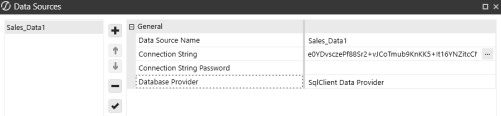
NOTE: Trusted Connections use the UserID and password you use to log into the Windows Server.
NOTE: The example above is for SQL server. Trusted connections vary by Data Provider type.
-
Click OK.
-
Save your Data Source.
Update Permissions on the OneStream Smart Integration Connector Gateway Service
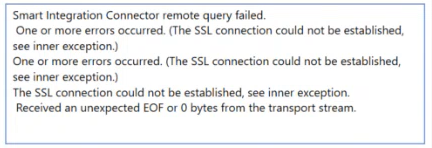
Next, you need to update the service to run as the user. If the service is not updated, the connection does not update and errors will occur.
-
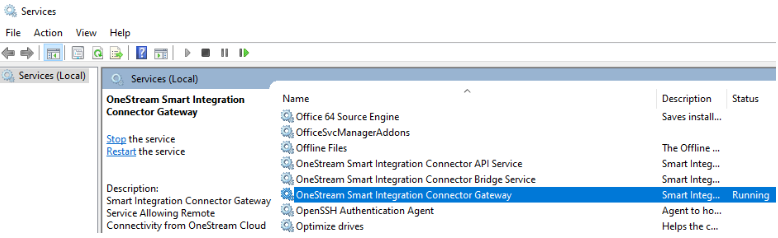
Open Windows Services.
-
Navigate to OneStream Smart Integration Connector Gateway. The service should be running.
-
Right-click and open Properties.
-
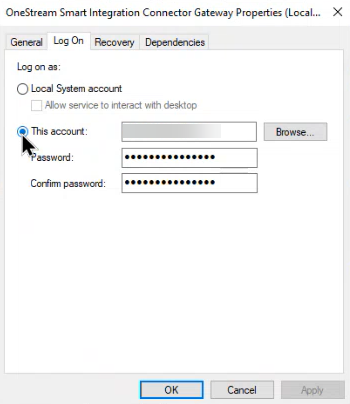
Click the Log On tab. Typically, this will default to the Local System account.
IMPORTANT: Before moving to the next step, ensure that you have the appropriate permissions and approvals from your IT Administrators to complete the Log On change. The service account used will require local Administrative rights to access resources on the Windows server, such as the machine certificate store and private keys used for encryption. This account will also require the appropriate permissions to access the database such as Microsoft SQL Server.
-
Change log on from Local System account to This account and enter your domain or login that has access to the data source. Depending on how your SSO is configured, your account could require your domain name, UserID, and password. Contact your IT Administrator if you have questions about your account domain.
-
Click Apply.
-
Click OK.
-
Right-click and select Restart to restart and update the service.
Test the Updated Integrated Connection String
You should test your connection through a Data Adapter query to verify your access to Smart Integration Connector. An alternate SQL Query to pulling the first 10-50 rows is sufficient. See Data Adapters Example.
Microsoft Entra Authentication for Azure SQL
The ability to use Microsoft Entra using service principal authentication to access Azure SQL is supported.
-
Open your OneStream Local Gateway Configuration.
-
Open a Local Gateway Connection.
-
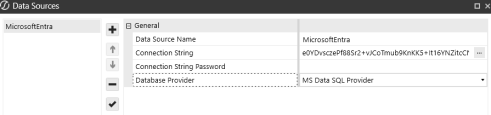
Enter a Data Source Name of MicrosoftEntra.
-
Navigate to the Connection String and enter a connection string. Example: Server=demo.database.windows.net; Authentication=Active Directory Service Principal; Encrypt=True; Database=testdb; User Id=AppId; Password=|password|;
-
Enter your Connection String Password.
NOTE: The Connection String Password is subsituted in place of |password| in the connection string. For security purposes, we recommend using the Connection String Password field and the substitution variable to ensure the password is not shown on screen. However, you can also embed the password directly within your connection string. For example:
Server = localhost;Port=3306;uid=root;pwd=|password|;database=gatewaymysql;. -
Select MS Data SQL Provider as your Database Provider.
-
Click
 Test Connection to test the data source.
 -
Click OK.
-
Click Save.

